Please remember to include you email address & contact number when you checkout
Setup instrutions for your wandering wifi products

Wandering Wifi 4G Router
Wandering Wifi 4G Router
Wandering Wifi 4G Router
For setup instructions of your Wandering Wifi 4G Router, please click the button below

4G Outdoor Antenna
Wandering Wifi 4G Router
Wandering Wifi 4G Router
For instructions on how to install your 4G Outdoor Antenna, please click the button below
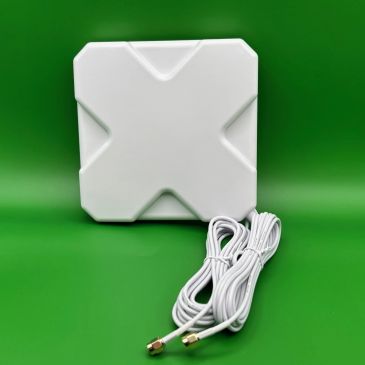
4G Indoor Antenna
Wandering Wifi 4G Router
4G Indoor Antenna
For instructions on how to install your 4G INDOOR Antenna, please click the button below
Wandering Wifi 4g router setup instructions
Step 1
Step 1
Step 1

Remove your router & all accessories from the box to check you have everything ready to go.
Step 2
Step 1
Step 1
Insert your SIM card into the SIM slot on the top of the router. Please take care to ensure the SIM is inserted the correct way & is fully inserted until it clicks into place. Please Note: your router takes a full-size SIM card. If you have a micro-SIM or nano-SIM, please use the included SIM card adapter that is needed for your SIM card.
Step 3
Step 1
Step 3
Unwrap the Velcro tie on your antennas & identify the WIFI antennas & the LTE(4G) antennas. These are marked at the base of the antennas for easy identification.
Step 4
Step 4
Step 3
Screw the WIFI antennas onto the WIFI antenna screw points located on the top of your router.
Step 5
Step 4
Step 5
Screw the LTE antennas onto the LTE antenna screw points located on the bottom of your router.
Step 6
Step 4
Step 5
Once you have decided on the location for your router, securely fasten the router in place. Fitting screws are included. Please take care to choose a location within reach of the power cables provided.
IMPORTANT: Please make sure the screws WILL NOT go through the other side of the mounting surface BEFORE attempting to fit the router.
If the included screws are too long, DO NOT USE them.
Step 7
Step 7
Once the router is fitted in your chosen location, double-check to make sure all antenna connections are still fastened tightly.
Step 8
Step 7
Using either the 12v DC cigarette lighter style power adapter or the mains 3-pin power adapter, insert the jack plug into the port on the bottom of your router. This is marked as “DC 12V” on your router.
IMPORTANT: Do not connect the cigarette adapter or the 3-pin mains plug to your power outlet before this step.
Step 9
Insert the chosen power adapter into your power outlet & wait for the LED stack to illuminate.
They should illuminate in the following order: 1) Power LED – located at the top of the LED stack. 2) WIFI LED – located directly beneath the Power LED. 3) The 4G LED located at the bottom of the LED stack. 4) Finally, the Internet LED (which looks similar to the old Internet Explorer logo) will start blinking. This LED is located 3rd from the bottom of the LED stack.
Please be patient, this process may take a few minutes – especially if you’re using a brand-new SIM card.
Step 10

Open the internet settings on your device & search for WIFI networks.
Select the network “WanderingWifi” & enter your router password when prompted.
Your password can be found on the paperwork included in your router box.
Step 11
Step 11
Your device should now be connected to the internet through your Wandering Wifi router.
To test, please open a web browser or an app (such as YouTube, Facebook etc..) to ensure you are connected successfully.
Installation Instructions for 4G Outdoor antenna
Coming Soon
Coming Soon
Coming Soon
Coming Soon
Coming Soon
Coming Soon
Coming Soon
Coming Soon
Coming Soon
Coming Soon
Coming Soon
Coming Soon
Coming Soon
Coming Soon
Coming Soon
Coming Soon
Coming Soon
Coming Soon
Coming Soon
Coming Soon
Coming Soon
Coming Soon
Coming Soon
Coming Soon
INSTALLATION INSTRUCTIONS FOR 4G INDOOR ANTENNA
Coming Soon
Coming Soon
Coming Soon
Coming Soon
Coming Soon
Coming Soon
Coming Soon
Coming Soon
Coming Soon
Coming Soon
Coming Soon
Coming Soon
Coming Soon
Coming Soon
Coming Soon
Coming Soon
Coming Soon
Coming Soon
Coming Soon
Coming Soon
Coming Soon
Coming Soon
Coming Soon
Coming Soon